Free
Everything you need to see if it earns a spot on your desktop.
- One service connection, with as many projects as you like
- Local Dev on Mac
- Small, Medium and Large widgets on your Mac desktop
 SquawkBar
Every deploy, error and outage across your stack, on real widgets on your Mac desktop.
Every deploy, error and outage across your stack, on real widgets on your Mac desktop.
Download for MacThe widgets
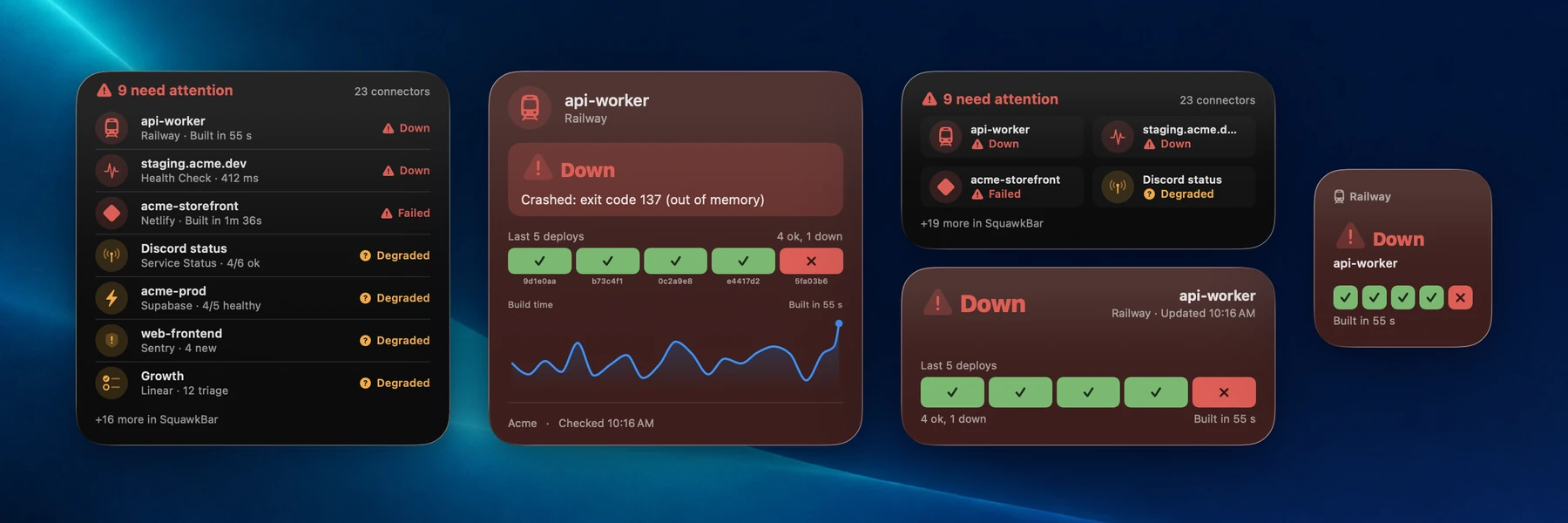
Small for a glance. Large for the whole picture. Overview to see several services at once. They sit on your desktop and they update on their own.
The deploy state and the last thing that happened, readable from across the room.
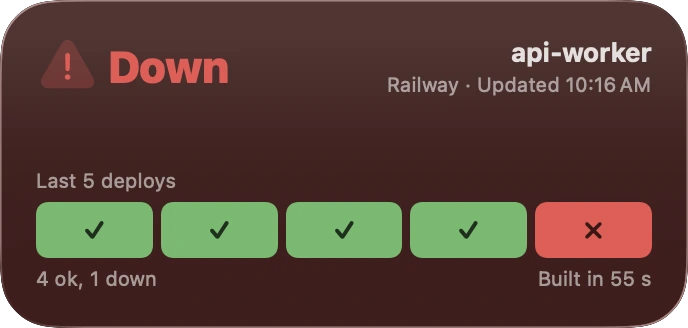
Your last five deploys as a strip, what failed and how long the build took, written right on the widget.
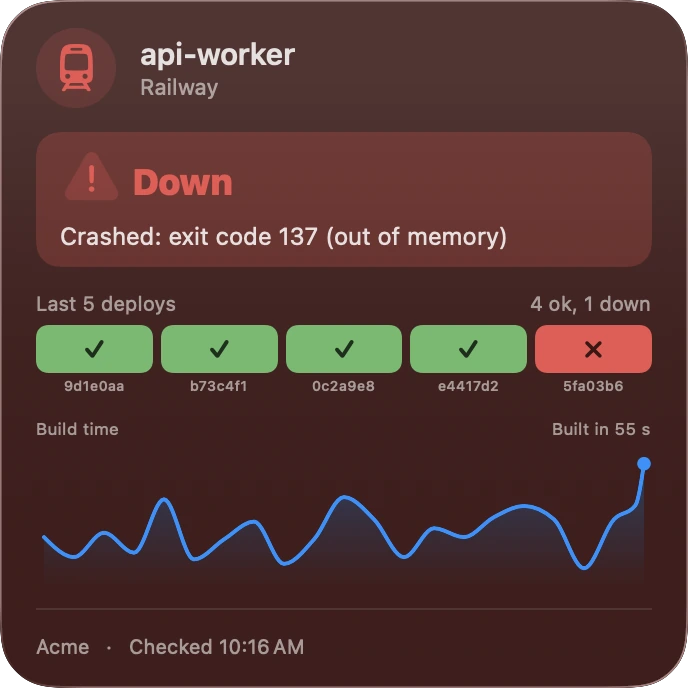
The build outcome, your last five deploys and a build-time trend, all on your desktop without opening a browser.
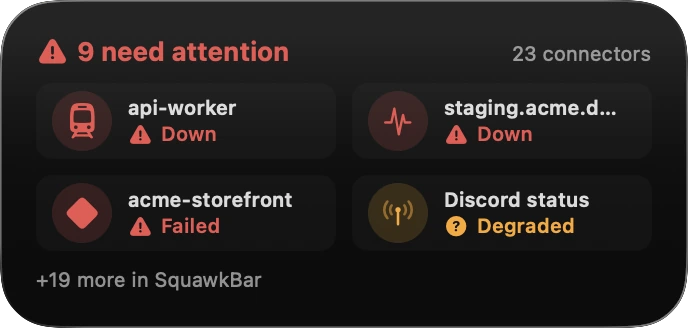
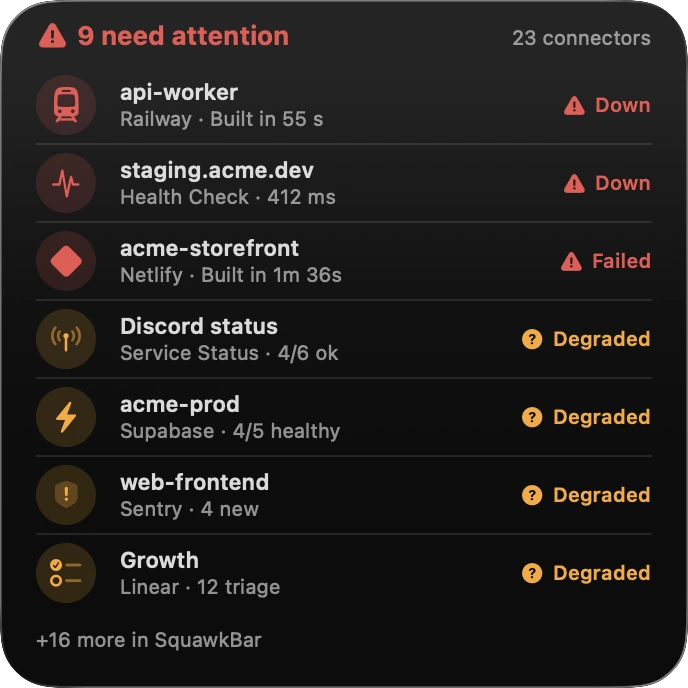
Put several services in one list and spot the one that is failing at a glance.
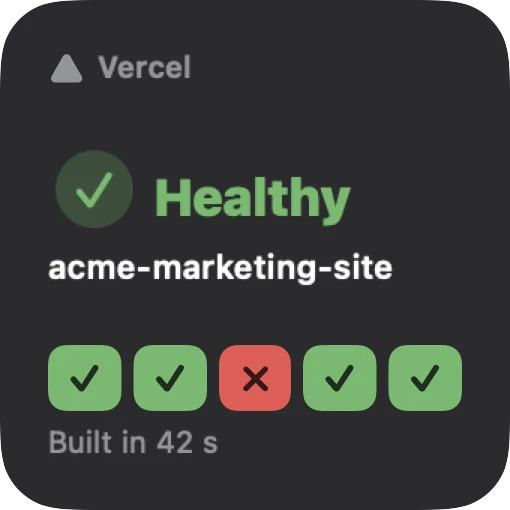
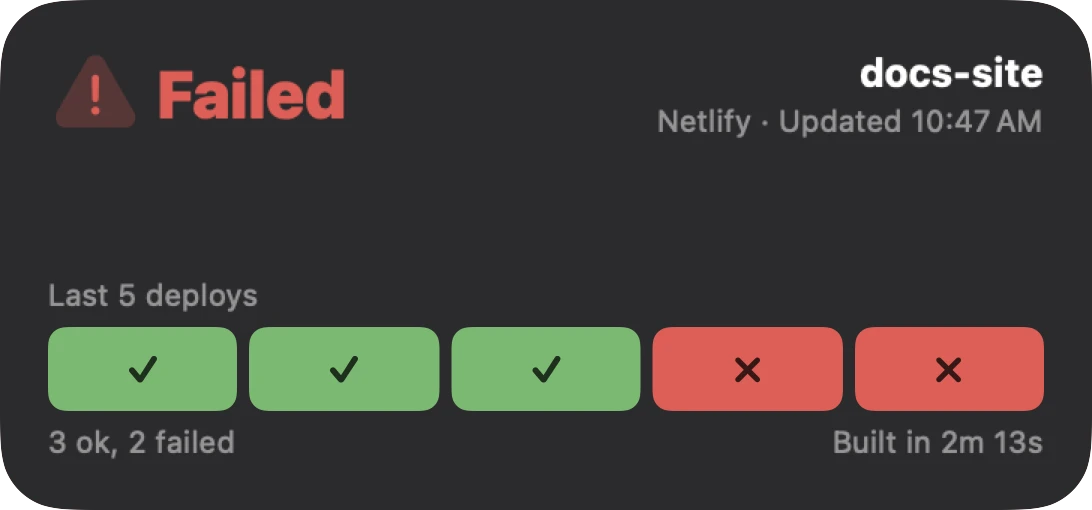
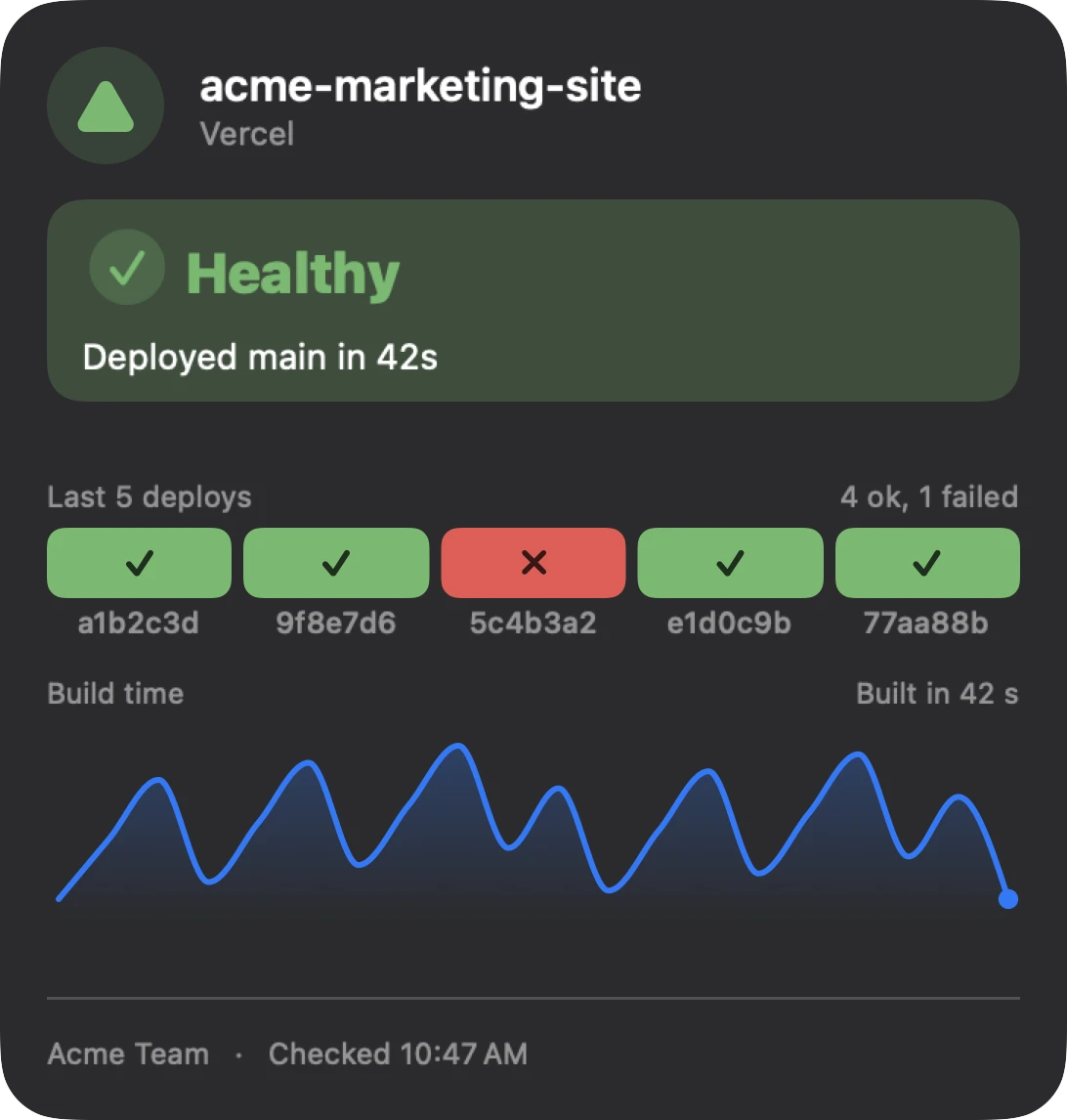
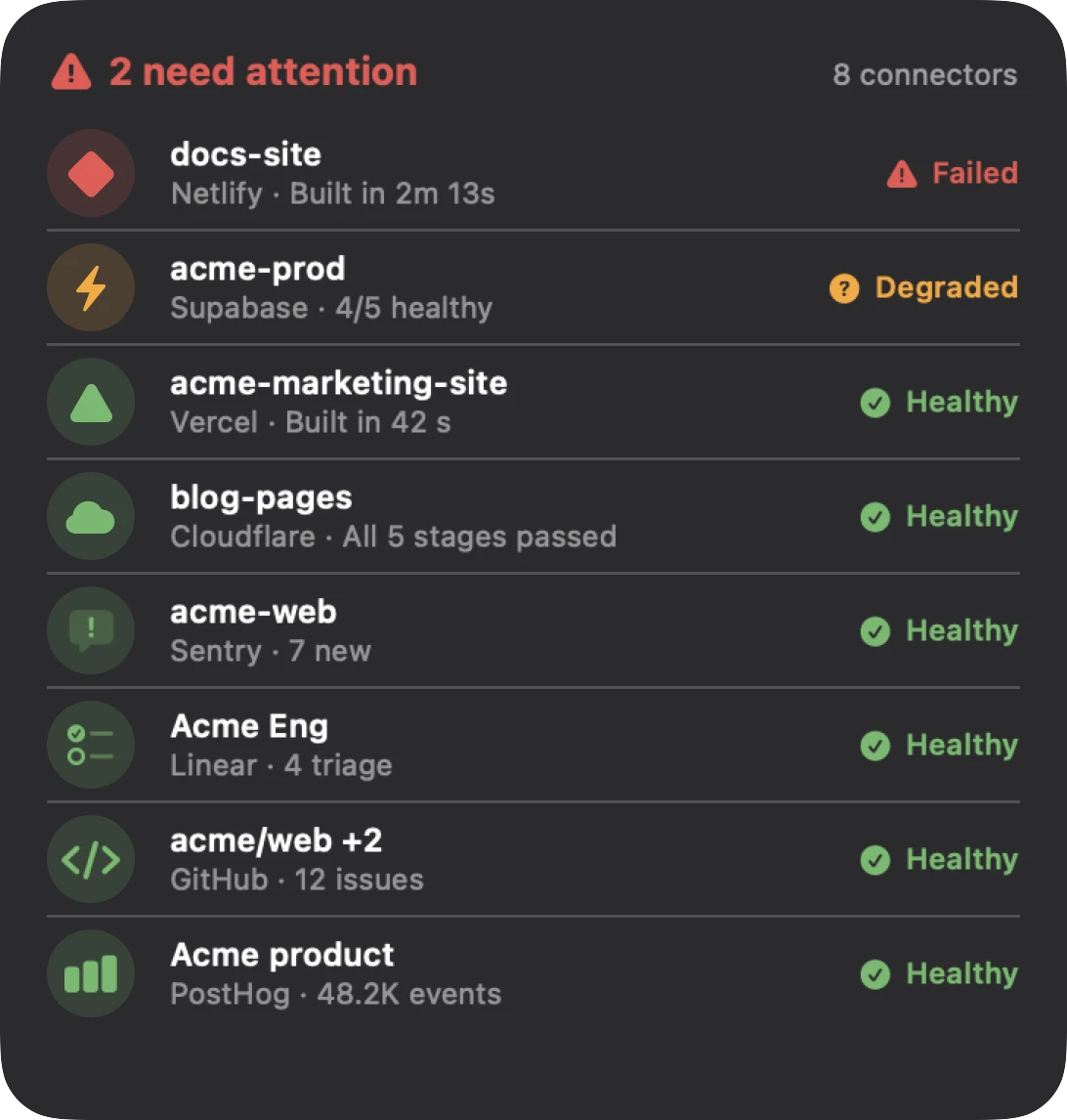
Real SquawkBar widget views, rendered with sample data.
The stack
Connect a service once, then choose which projects to watch. Tap a widget to jump straight to that service’s dashboard.
Deploy status per project
Latest deploy per site
Deploy and service health
Latest deploy per service
Project state and service health
Hosting and App Hosting deploys
Pages production deploys
New and unresolved issues
Event ingestion in the last 24 hours
Open, in-progress and triage issues
Open issues and PRs across your repos
Public service status
Plus your own health checks for any URL, with your own title and check frequency.
Set up
Connect a service, then add a widget the way you add any other.
Open SquawkBar and connect a service. Your token stays in your Keychain.
Right-click the desktop and choose Edit Widgets.
Choose SquawkBar, then click Small, Medium, Large or Overview to add it, or drag it onto your desktop.
The widget asks which project it should show. To change it later, right-click it and choose Edit Widget.
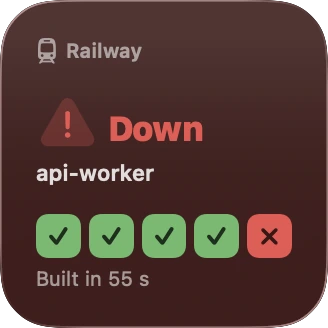
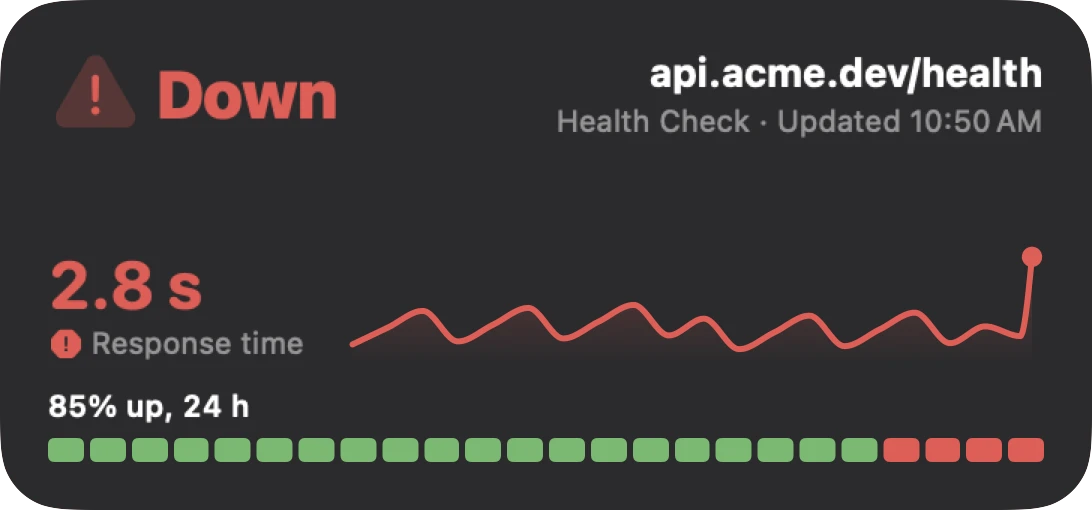
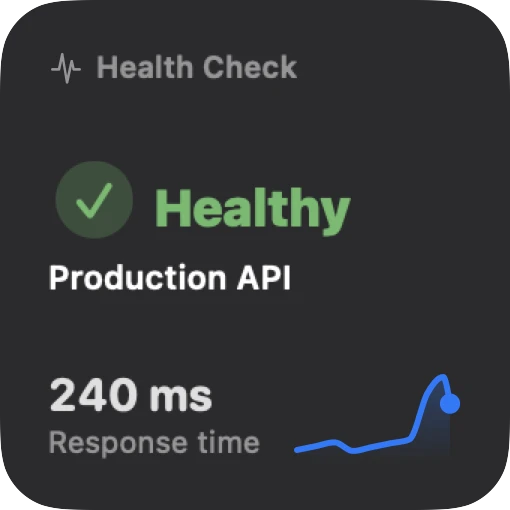
Sample data: a check that is down, and one that is healthy.
Health checks
Your API, your landing page, a client’s site. Give SquawkBar a URL, a name and how often to check. It shows up as a widget, and Pro pings you the moment it fails.
The squawk
Push alerts are part of SquawkBar Pro.
Private by design
There is no SquawkBar login. Each service connects on its own, with its own access token.
Your access tokens live in the Keychain on your device. Push alerts, if you turn them on, need the tokens for the services you chose. Those are encrypted at rest and used only to read status.
Your widget setup syncs between your Macs through your own iCloud account.
Free and Pro
Download SquawkBar and use it as long as you like. If your stack outgrows the free version, Pro is an optional upgrade inside the app.
Everything you need to see if it earns a spot on your desktop.
An in-app upgrade for your whole stack.
Everything in Free, plus:
Upgrade from inside the app whenever you like.
Pro is an auto-renewing in-app subscription. Plans and prices are shown in the app in your local currency, and you can manage or cancel in your Apple Account settings.
Questions